Tuesday, August 20, 2013

PowerShell Progress Meter

In many of my past PowerShell scripts, I've included my own home-spun progress report in the results window. I like that a lot, but my mind was blown when I noticed that there is a "Write-Process" cmdlet...with some re-tweaking I made it rock and much more efficient.

So the situation where you would want to use this is if you are looping over a large dataset and it takes a while to bring back results (I often will use PowerShell to hit all the servers I control, get some information about them and return it to me (backup status, if they are VM's, configuration info, etc). It can take 20+ minutes to get to all the servers and it is nice to know how far along the process is; thats where this comes in handy.

Some things to keep in mind...You need to have some resultset to work with, it doesn't have to be a query, but it does have to be some kind of System.Array. After you generate the Array, run this bit of code...I'm calling my array "results":

<################################
 ##  SETUP PROGRESS VARIABLES  ##
 ################################>
$ResultsLen = $results.Length
$LastPercentComplete = 0
[datetime]$DateStart = Get-Date -format G

This sets up some of the variables we will need inside the progress meter. Next, just after you issue your "foreach ($result in $results) {" You run the following code:

<##########################
 ##  RUN PROGRESS METER  ##
 ##########################>
foreach ($result in $results) 
{
 $currentRow++
 $PercentComplete = [math]::floor(($CurrentRow/$ResultsLen)*100)
 [datetime]$DateNow = Get-Date -format G
 $diff = $DateNow-$DateStart
 $DiffSeconds = $diff.TotalSeconds
 $SecondsPerRecord = $DiffSeconds/$currentRow
 $RemainingSeconds = $SecondsPerRecord*($ResultsLen-$currentRow)
 $SecondsPerRecord = [Math]::Round($SecondsPerRecord,2)
 
 Write-Progress -Activity "Investigating Servers..." `
  -PercentComplete $PercentComplete `
  -SecondsRemaining $RemainingSeconds `
  -CurrentOperation "Current Row: $currentRow / $ResultsLen.   Seconds/Record: $SecondsPerRecord   Run Time (seconds): $DiffSeconds" `
  -Status "Please wait."

 Remove-Variable DateNow
 Remove-Variable DiffSeconds
 Remove-Variable SecondsPerRecord
 Remove-Variable RemainingSeconds
}

You don't need to remove your variables, I just like to do it to clean up my code, I do this at the bottom of the script:

Remove-Variable ResultsLen
Remove-Variable currentRow
Remove-Variable LastPercentComplete
Remove-Variable DateStart

Want to see it in action? Take my script and add this to the top of it (creates an array with 10000 items, which should keep the status bar up long enough for you to see):
$results = 1..10000

This looks awesome in PowerGUI, which is what I use for PowerShell Development, it looks a bit funky in the native PS window, but good enough to get you the idea. If you aren't using PowerGUI, give it a shot, it's free. http://www.powergui.org

As always, please leave comments below if you find this useful or have other suggestions. It's nice to know people read these posts.

Wednesday, August 7, 2013

Getting the CORE/CPU count with PowerShell

With SQL Server 2012's new licensing model, it becomes important to know how many cores you have on a given server, however if you are still in planning phase for 2012 and you have a large inventory of SQL Servers, you might be interested in knowing how the average number of cores per server you have, or the total number of servers with x cores. This is the situation I was in, so I turned to PowerShell to help me out. The "Hey, Scripting Guy! blog" helped me get a start on figuring this out. It showed me that I can do the following:
$property = "systemname","maxclockspeed","addressWidth","numberOfCores", "NumberOfLogicalProcessors"
Get-WmiObject -class win32_processor -Property  $property | Select-Object -Property $property
And get returned the information I want. But this has a lot of room for some improvement. First I started by creating a datatable to dump the results in when I loop over every server in my inventory, next I added my progress meter logic (this is handy if you have multiple locations across the world that you will be connecting to, or if you have a large inventory), I then added logic to loop over the inventory and store the data, then I display it in a Grid. At that point you can view it, or copy it to excel or do something else with it. Note that my logic assumes you have some kind of inventory database which contains the hostname of your SQL Servers; if you have this in another format (or don't have it), you will have to remove the SQL Query logic and replace it with logic matching the way you store this data. Let me know if you find this useful, or if you have any questions:

<###################################
 ##   DEFINE INVENTORY DATABASE   ##
 ###################################>
CLS
$server = "[SERVER\INSTANCE]"
$dbname = "[DB Name]"
$LookupServer = New-Object -TypeName Microsoft.SqlServer.Management.Smo.Server -ArgumentList localhost
CLS
Write-Host 'Querying Server...'

<#########################
 ##   CLEAR VARIABLES   ##
 #########################>
$SystemName = ""
$MaxclockSpeed = ""
$AddressWidth = ""
$NumberOfCores = 0
$NumberOfLogicalProcessors = 0
$CPUCount = 0

<######################################
 ##   CREATE DATATABLE FOR RESULTS   ##
 ######################################>
$table = New-Object system.Data.DataTable

$col1 = New-Object system.Data.DataColumn Server,([string])
$col2 = New-Object system.Data.DataColumn maxclockspeed,([string])
$col3 = New-Object system.Data.DataColumn addressWidth,([string])
$col4 = New-Object system.Data.DataColumn numberOfCores,([string])
$col5 = New-Object system.Data.DataColumn NumberOfLogicalProcessors,([string])
$col6 = New-Object system.Data.DataColumn CPUCount,([string])


$table.columns.add($col1)
$table.columns.add($col2)
$table.columns.add($col3)
$table.columns.add($col4)
$table.columns.add($col5)
$table.columns.add($col6)

<######################################
 ## QUERY TO GET INSTANCES TO CHECK  ##
 ######################################>
$query += "
 WRITE YOUR QUERY HERE TO GET YOUR SERVER LIST.  
 THIS LIST SHOULD NOT CONTAIN AN INSTANCE NAME AND SHOULD NAME THE SERVERNAME FIELD [ServerName]
 i.e. SELECT xxx AS ServerName
"

$results = Invoke-Sqlcmd -Query $query -ServerInstance $server -Database $dbname;
#$ResultsLen = $results.Length


$resultsLen = 0
if ($results -is [system.array])
{
 $ResultsLen += $results.Length
}
else
{
 if ($results)
 {
  $ResultsLen += 1
 }
 else
 {
  Write-Host "No servers found in the inventory to inspect"
  break
 }
}


$currentRow = 0
$LastPercentComplete = 0
$sd = Get-Date -format G
[datetime]$DateStart = Get-Date -format G
Write-Host "Starting: " $sd
Write-Host "Total Server Count = $ResultsLen"

<#########################################
 ## LOOP OVER RECORDS AND WRITE TO FILE ##
 #########################################>
foreach ($result in $results) 
{
 <############################
  ##    DISPLAY PROGRESS    ##
  ############################>
 $currentRow = $currentRow +1
 $PercentComplete = [math]::floor(($CurrentRow/$ResultsLen)*100)
 if($PercentComplete % 10 -eq 0 -and $LastPercentComplete -ne $PercentComplete -and $PercentComplete -ne 100)
 {
  [datetime]$DateNow = Get-Date -format G

  $diff = $DateNow-$DateStart
  $DiffSeconds = $diff.TotalSeconds
  
  $SecondsPerRecord = $DiffSeconds/$currentRow
  $RemainingSeconds = $SecondsPerRecord*($ResultsLen-$currentRow)
  $RemainingMinutes = new-timespan -seconds $RemainingSeconds
  $SecondsPerRecord = [Math]::Round($SecondsPerRecord,2)
  Write-Host "Progress: $PercentComplete %.  Current Row: $currentRow.   Estimated Time Remaining: $RemainingMinutes   Seconds/Record: $SecondsPerRecord   Run Time (seconds): $DiffSeconds"

  Remove-Variable DateNow
  Remove-Variable DiffSeconds
  Remove-Variable SecondsPerRecord
  Remove-Variable RemainingSeconds
  Remove-Variable RemainingMinutes
  
 }
 ##Write-Host "Current Row: $currentRow"
 $LastPercentComplete = $PercentComplete

 <################################
  ## ASSIGN THE SERVER TO CHECK ##
  ################################>
 $server = $result.ServerName  #Do not put an instance here...this is just the root server

 try
 {
  try
  {
   <#################################################################
    ##  WE ARE DOING A TRY CATCH HERE BECAUSE ON SOME OLD SYSTEMS  ## 
    ##  THE numberOfCores AND NumberOfLogicalProcessors FIELDS     ##
    ##  DO NOT EXIST, WE WILL CATCH THESE AND RESOLVE THEM BELOW   ##
    #################################################################>
   $property = "systemname","maxclockspeed","addressWidth", "numberOfCores", "NumberOfLogicalProcessors"
   $CPUresults = Get-WmiObject -ComputerName $server -class win32_processor -Property $property -ErrorAction Stop | Select-Object -Property $property

   <###############################################################
    ##  IF MULTIPLE CPUs EXIST THEY WILL BE PLACED IN AN ARRAY.  ##
    ##  WE WILL NEED TO LOOP OVER THE ARRAY TO GET COUNTS.       ##
    ###############################################################>
   if ($CPUresults -is [system.array])
   {
    $NumberOfCores = 0
    $NumberOfLogicalProcessors = 0
    $CPUCount = $CPUresults.Count
    foreach ($CPUresult in $CPUresults) 
    {
     <#####################
      ## WRITE VARIABLES ##
      #####################>
      $SystemName = $CPUresult.systemname
      $MaxclockSpeed = $CPUresult.maxclockspeed
      $AddressWidth = $CPUresult.addressWidth
      $NumberOfCores += $CPUresult.numberOfCores
      $NumberOfLogicalProcessors += $CPUresult.NumberOfLogicalProcessors
    }
    if ($NumberOfCores -eq 0)
    {
     $NumberOfCores = $CPUresults.Count
     $NumberOfLogicalProcessors = $CPUresults.Count
    }

   }
   <############################################################
    ##  IF ONLY 1 CPU EXISTS WE CAN JUST DISPLAY THE RESULTS  ##
    ############################################################>
   else 
   {
    $SystemName = $CPUresults.systemname
    $MaxclockSpeed = $CPUresults.maxclockspeed
    $AddressWidth = $CPUresults.addressWidth
    $NumberOfCores = $CPUresults.numberOfCores
    $NumberOfLogicalProcessors = $CPUresults.NumberOfLogicalProcessors
    $CPUCount = 1

   }
  }
  catch
  {
   <###################################################################
    ##  MOST LIKELY THE numberOfCores AND NumberOfLogicalProcessors  ## 
    ##  FIELDS WERE MISSING, TRYING AGAIN WITHOUT THEM               ##
    ##  (ASSUME 1 CORE PER CPU)                                      ##
    ###################################################################>
   $property = "systemname","maxclockspeed","addressWidth", "SocketDesignation"
   $CPUresults = Get-WmiObject -ComputerName $server -class win32_processor -Property $property -ErrorAction Stop | Select-Object -Property $property

   if ($CPUresults -is [system.array])
   {
    $SystemName = $CPUresults[0].systemname
    $MaxclockSpeed = $CPUresults[0].maxclockspeed
    $AddressWidth = $CPUresults[0].addressWidth
    $NumberOfCores = $CPUresults.Count
    $NumberOfLogicalProcessors = $CPUresults.Count
    $CPUCount = $CPUresults.Count
   }
   else 
   {
    $SystemName = $CPUresults.systemname
    $MaxclockSpeed = $CPUresults.maxclockspeed
    $AddressWidth = $CPUresults.addressWidth
    $NumberOfCores = "1"
    $NumberOfLogicalProcessors = "1"
    $CPUCount = "1"
   }  
  }

  <######################
   ## WRITE DATA ROWS ##
   ######################>
  $row = $table.NewRow()
  $row.Server = $SystemName
  $row.maxclockspeed = $MaxclockSpeed
  $row.addressWidth = $AddressWidth
  $row.numberOfCores = $NumberOfCores
  $row.NumberOfLogicalProcessors = $NumberOfLogicalProcessors
  $row.CPUCount = $CPUCount
  $table.Rows.Add($row)
  
  Remove-Variable SystemName
  Remove-Variable MaxclockSpeed
  Remove-Variable AddressWidth
  Remove-Variable NumberOfCores
  Remove-Variable NumberOfLogicalProcessors
  Remove-Variable CPUCount
    
 }
 catch 
 {
  <######################
   ## WRITE ERROR ROWS ##
   ######################>
  $row = $table.NewRow()
  $row.Server = $server
  $row.maxclockspeed = "ERROR"
  $row.addressWidth = ""
  $row.numberOfCores = ""
  $row.NumberOfLogicalProcessors = ""
  $row.CPUCount = ""
  $table.Rows.Add($row)
  Write-Host $_.Exception.Message
 }
}

$table | Out-GridView

Remove-Variable result
Remove-Variable results
Remove-Variable CPUresult
Remove-Variable CPUresults
Remove-Variable property
Remove-Variable row
Remove-Variable table

Thursday, May 23, 2013

LEFT vs RIGHT vs SUBSTRING

Today I want to post something pretty simple, but a Jr. DBA asked me about it so I wanted to put out some quick basic logic. He was confused by how the RIGHT function worked, so I tried to explain it to him, but having a visual proof query helped him out. So, lets review before we look at the code. LEFT([string],n) will display the first n characters of the string starting on the left side of the string RIGHT([string],n) will display the first n characters of the string starting on the right side of the string (or to write this a different way, it will display the last n characters in the string) SUBSTRING([string],s,n) will display n characters of the string starting at position s So lets see this in action, here is my query:
DECLARE @Alpha VARCHAR(26) 
SET @Alpha = 'ABCDEFGHIJKLMNOPQRSTUVWXYZ'
SELECT @Alpha AS Alpha                    -- Display All characters
  , LEFT(@Alpha,5) AS [LEFT(Alpha,5)]               -- Display the first 5 characters from the Left
  , RIGHT(@Alpha, 5) AS [RIGHT(Alpha,5)]              -- Display the first 5 characters from the Right
  , SUBSTRING(@Alpha, 15,5) AS [SUBSTRING(Alpha,15,5)]          -- Display 5 characters staring at postition 15
  , SUBSTRING(@Alpha, CHARINDEX('L',@Alpha),5) AS [SUBSTRING(Alpha, CHARINDEX('L',Alpha),5)]  -- Display 5 characters Starting at "L"
  , RIGHT(@Alpha, CHARINDEX('R',REVERSE(@Alpha))) AS [RIGHT(Alpha, CHARINDEX('R',REVERSE(Alpha)))]       -- Display all Characters starting at the last "R" in the string

I added two additional results to this; the first uses SUBSTRING to return 5 characters, but rather than starting at a position, it uses CHARINDEX() to start at the first occurrence of a given string ("L" in the example above). The second extra result uses the REVERSE() function to start on the right of the string and display all characters back to the first (or last depending on how you look at it) occurrence of a string or character ("R" in my example above). This would be beneficial if you had a windows path to something and you wanted to strip out the file name...say you had the path "c:\Folder1\Folder2\Folder3\Folder4\Folder5\File.ext" All you want is File.ext, so you could write: RIGHT(@Path, CHARINDEX('\',REVERSE(@Path))). Hope that helps someone out...if you found this useful, please post a comment below, and feel free to subscribe or follow me on twitter: @EricZierdt

Thursday, April 25, 2013

PowerShell - Check Backups

I wrote this script a while ago and have been meaning to publish it for others to use. It's pretty straight forward, just put in a Server\Instance and it will use SMO to check the Agent Job status, let you know if the Backup Job is running, or what the last outcome was. Then it queries the instance to see the last backup dates. We want daily backups, so we are interested in the hours since last backup occurred, so that is the final column for easy reference. The only thing you will need to tweak is the function that gets the Agent Job info. We have a specific naming convention that we use for all our backup jobs, if you do the same, you will need to edit the "WHERE" clause to meet your naming needs...perhaps simply $._Name -match "Backup" will work for you.
$LookupServer = New-Object -TypeName Microsoft.SqlServer.Management.Smo.Server -ArgumentList localhost

<###############################################
 ## VARIABLES TO ENTER:                       ##
 ## LooupServer: Server\Instance to check  ##
 ###############################################>
$LookupServer = "localhost\DEV"

<###################################
 ## FUNCTION TO CHECK JOB STATUS  ##
 ###################################>
Function Get-SQLJobStatus
{
    param ([string]$server)
    # Load SMO assembly, and if we're running SQL 2008 DLLs load the SMOExtended and SQLWMIManagement libraries
    [System.Reflection.Assembly]::LoadWithPartialName('Microsoft.SqlServer.SMO') | out-null

    # Create object to connect to SQL Instance
    $srv = New-Object "Microsoft.SqlServer.Management.Smo.Server" $server

    # used to allow piping of more than one job name to function
    $srv.JobServer.Jobs | where {$_.Name -match "Backup" -and $_.Name -notmatch "LOG" -and $_.Name -notmatch "System" -and $_.IsEnabled -eq "True" -and $_.Name -notmatch "Optimizations" -and $_.Name -notmatch "History" -and $_.HasSchedule -eq "True"} | Select Name, CurrentRunStatus, LastRunOutcome,LastRunDate | Out-GridView
 Remove-Variable srv
 Remove-Variable server
}

<#############################################
 ## FUNCTION TO GET SERVER VERSION/EDITION  ##
 #############################################>
Function Get-SQLServerVersion
{
    param ([string]$server)
    [System.Reflection.Assembly]::LoadWithPartialName('Microsoft.SqlServer.SMO') | out-null

    # Create object to connect to SQL Instance
    $srv = New-Object "Microsoft.SqlServer.Management.Smo.Server" $server

 $EditionName = $srv.Edition
 ##$srv.Version.Major
 ##$srv.VersionMinor
 switch ($srv.Version.Major) 
    { 
        8 {$VersionName = "2000"} 
        9 {$VersionName = "2005"} 
        10 {$VersionName = "2008"} 
        11 {$VersionName = "2012"} 
        default {$VersionName = "The version could not be determined."}
    }
 if ($srv.Version.Major -eq "10")
 {
  if ($srv.VersionMinor -eq "50")
  {
   $VersionName += " R2"
  }
 }
 $VersionEditionName = "$VersionName $EditionName"
 
 $table = New-Object system.Data.DataTable "$TableName"
 $col1 = New-Object system.Data.DataColumn VersionName,([string])
 $col2 = New-Object system.Data.DataColumn VersionEditionName,([string])
 
 $table.columns.add($col1)
 $table.columns.add($col2)
 
 $row = $table.NewRow();
 $row.VersionName = $VersionName ;
 $row.VersionEditionName = $VersionEditionName ;
 
 $table.Rows.Add($row) 

 $table
 
 Remove-Variable srv
 Remove-Variable server
 Remove-Variable EditionName
 Remove-Variable VersionName
 Remove-Variable VersionEditionName
 Remove-Variable table
 Remove-Variable col1
 Remove-Variable col2
 Remove-Variable row
}

CLS
$sd = Get-Date -format g
Write-Host "Starting: " $sd
Write-Host ""
$ServerInfo = Get-SQLServerVersion -server $LookupServer
$ServerVersionEdition = $ServerInfo.VersionEditionName
Write-Host "starting query for server: $LookupServer  version: $ServerVersionEdition "

if ($ServerInfo.VersionName -eq "2000")
{
 $BackupQuery = "
 SELECT '$($result.InstanceName)' AS [Server], DBS.name AS DBName,ISNULL(BKS.backup_size,0) AS backup_size,ISNULL(BKS.backup_size,0) AS compressed_backup_size
   ,ISNULL(BCKFMLY.device_type,0) AS device_type,BKS.backup_start_date,BKS.backup_finish_date
   , GETDATE() AS DateChecked, DATEDIFF(hour, BKUP.LastBackupDate, GETDATE()) AS HoursSinceLastBackup
 FROM sysdatabases DBS
 LEFT JOIN (
    SELECT '$($result.InstanceName)' AS [server]
      ,BK.database_name AS DBName 
      ,MAX(BK.backup_finish_date) AS LastBackupDate
      ,GETDATE() AS DateChecked
    FROM msdb.dbo.backupset BK
    LEFT JOIN msdb..backupmediafamily LBCKFMLY ON BK.media_set_id = LBCKFMLY.media_set_id
    WHERE BK.[type] = 'D'
      AND ISNULL(LBCKFMLY.physical_device_name,'\') LIKE '%\%'
      AND ISNULL(LBCKFMLY.physical_device_name,'\') NOT LIKE '{%'
    GROUP BY database_name
   ) BKUP  ON BKUP.DBName = DBS.name
 LEFT JOIN msdb.dbo.backupset BKS ON DBS.name = BKS.database_name AND BKUP.LastBackupDate = BKS.backup_finish_date AND BKS.[type] = 'D'
 LEFT JOIN msdb..backupmediafamily BCKFMLY ON BKS.media_set_id = BCKFMLY.media_set_id
 WHERE DBS.crdate < DATEADD(hour,-24,GETDATE()) 
   AND DBS.name NOT IN ('tempdb')
   AND DATABASEPROPERTYEX(DBS.name, 'Status') = 'ONLINE'
   AND ISNULL(BCKFMLY.physical_device_name,'\') NOT LIKE '{%'  
   AND ISNULL(BCKFMLY.physical_device_name,'\') LIKE '%\%' 
 ORDER BY bkup.DBName
 "
}
elseif ($ServerInfo.VersionName -eq "2005")
{
 $BackupQuery = "
 SELECT '$($result.InstanceName)' AS [Server], DBS.name AS DBName,ISNULL(BKS.backup_size,0) AS backup_size,ISNULL(BKS.backup_size,0) AS compressed_backup_size
   ,ISNULL(BCKFMLY.device_type,0) AS device_type,BKS.backup_start_date,BKS.backup_finish_date
   , GETDATE() AS DateChecked, DATEDIFF(hour, BKUP.LastBackupDate, GETDATE()) AS HoursSinceLastBackup
 FROM sys.databases DBS
 OUTER APPLY (
     SELECT BK.database_name ,
       MAX(BK.backup_finish_date) AS LastBackupDate
     FROM msdb.dbo.backupset BK
     LEFT JOIN msdb..backupmediafamily LBCKFMLY ON BK.media_set_id = LBCKFMLY.media_set_id
     WHERE DBS.name = BK.database_name
       AND BK.[type] = 'D'
       AND ISNULL(LBCKFMLY.physical_device_name,'\') LIKE '%\%'
       AND ISNULL(LBCKFMLY.physical_device_name,'\') NOT LIKE '{%'
     GROUP BY BK.database_name
    ) AS BKUP
 LEFT JOIN msdb.dbo.backupset BKS ON BKUP.database_name = BKS.database_name AND BKUP.LastBackupDate = BKS.backup_finish_date AND BKS.[type] = 'D'
 LEFT JOIN msdb..backupmediafamily BCKFMLY ON BKS.media_set_id = BCKFMLY.media_set_id
 WHERE DBS.create_date < DATEADD(hour,-24,GETDATE())
   AND DBS.state_desc = 'ONLINE'
   AND DBS.name NOT IN ('tempdb')
   AND ISNULL(BCKFMLY.physical_device_name,'\') NOT LIKE '{%'  
   AND ISNULL(BCKFMLY.physical_device_name,'\') LIKE '%\%' 
 ORDER BY DBS.name

 "
}
else
{
 $BackupQuery = "
 SELECT '$($result.InstanceName)' AS [Server], DBS.name AS DBName,ISNULL(BKS.backup_size,0) AS backup_size,ISNULL(BKS.backup_size,0) AS compressed_backup_size
   ,ISNULL(BCKFMLY.device_type,0) AS device_type,BKS.backup_start_date,BKS.backup_finish_date
   , GETDATE() AS DateChecked, DATEDIFF(hour, BKUP.LastBackupDate, GETDATE()) AS HoursSinceLastBackup
 FROM sys.databases DBS
 OUTER APPLY (
     SELECT BK.database_name ,
       MAX(BK.backup_finish_date) AS LastBackupDate
     FROM msdb.dbo.backupset BK
     LEFT JOIN msdb..backupmediafamily LBCKFMLY ON BK.media_set_id = LBCKFMLY.media_set_id
     WHERE DBS.name = BK.database_name
       AND BK.[type] = 'D'
       AND ISNULL(LBCKFMLY.physical_device_name,'\') LIKE '%\%'
       AND ISNULL(LBCKFMLY.physical_device_name,'\') NOT LIKE '{%'
     GROUP BY BK.database_name
    ) AS BKUP
 LEFT JOIN msdb.dbo.backupset BKS ON BKUP.database_name = BKS.database_name AND BKUP.LastBackupDate = BKS.backup_finish_date AND BKS.[type] = 'D'
 LEFT JOIN msdb..backupmediafamily BCKFMLY ON BKS.media_set_id = BCKFMLY.media_set_id
 WHERE DBS.create_date < DATEADD(hour,-24,GETDATE())
   AND DBS.state_desc = 'ONLINE'
   AND DBS.name NOT IN ('tempdb')
   AND ISNULL(BCKFMLY.physical_device_name,'\') NOT LIKE '{%'  
   AND ISNULL(BCKFMLY.physical_device_name,'\') LIKE '%\%' 
 ORDER BY DBS.name
 "
}
try
{
 Get-SQLJobStatus -server $LookupServer
 $BackupResults = Invoke-Sqlcmd -Query $BackupQuery -ServerInstance $LookupServer -Database master -ErrorAction Stop;
 $BackupResults | Out-GridView
 Remove-Variable BackupResults
 Remove-Variable BackupQuery
}
catch
{
 Write-OutputHighlighted -inputText "Error connecting to server " $LookupServer
}
$ed = Get-Date -format g
Write-Host "
Complete: " $ed

<#######################
 ## CLEANUP VARIABLES ##
 #######################>
Remove-Variable sd
Remove-Variable ed
Remove-Variable LookupServer
Remove-Variable ServerInfo
Remove-Variable ServerVersionEdition
You can see that we have broken out the query to check msdb for last backup info into three different queries, based on if the server is 2000, 2005 or 2008+ This is done due to the differences in views with the different versions.

Wednesday, April 24, 2013

SQL Saturday 175 is this weekend!

I'm pretty excited about the SQL Saturday in Fargo this weekend. I've spent a lot of time polishing my presentation on Table Partitioning and getting it all ready for this event. I'm looking forward to spending some time with several SQL Friends, and hopefully meeting some cool SQL people from the Fargo area. All-in-all, this should be a fantastic weekend.

Friday, April 19, 2013

SQL 2012 Extended Event Wizard Question

I'm having a bit of trouble figuring out how to translate my 2008 R2 Extended Events into the GUI for 2012. Most of it seems pretty straight forward, but I'm having an issue how to put the values from the WHERE clause into the GUI.

Here is my query (which works in 2012, if I simply execute it)

IF EXISTS(SELECT * FROM sys.server_event_sessions WHERE name='MonitorExpensiveQuery') 
 DROP EVENT SESSION MonitorExpensiveQuery ON SERVER 
GO 
--Creating a Extended Event session with CREATE EVENT SESSION command 
CREATE EVENT SESSION MonitorExpensiveQuery ON SERVER 
ADD EVENT sqlserver.sql_statement_completed 
( 
 ACTION 
 ( 
        sqlserver.client_app_name
        ,sqlserver.client_hostname
        ,sqlserver.username
        ,sqlserver.nt_username
        ,sqlserver.session_id
        ,sqlserver.sql_text
 ) 
 WHERE (
   duration > 3000000
   OR cpu_time > 1000
   OR reads > 10000
   OR writes > 10000
  )
)
,ADD EVENT sqlserver.sp_statement_completed 
( 
 ACTION 
 ( 
        sqlserver.client_app_name
        ,sqlserver.client_hostname
        ,sqlserver.username
        ,sqlserver.nt_username
        ,sqlserver.session_id
        ,sqlserver.sql_text
 ) 
 WHERE (
   duration > 3000000
   OR cpu_time > 1000
   OR reads > 10000
   OR writes > 10000
  )
)
ADD TARGET package0.ring_buffer WITH (MAX_DISPATCH_LATENCY = 1 SECONDS, STARTUP_STATE = ON) -- The target
GO

ALTER EVENT SESSION MonitorExpensiveQuery ON SERVER STATE = START
GO

So I kick off the GUI and the first few pages seem pretty straight forward...Add my Session name:

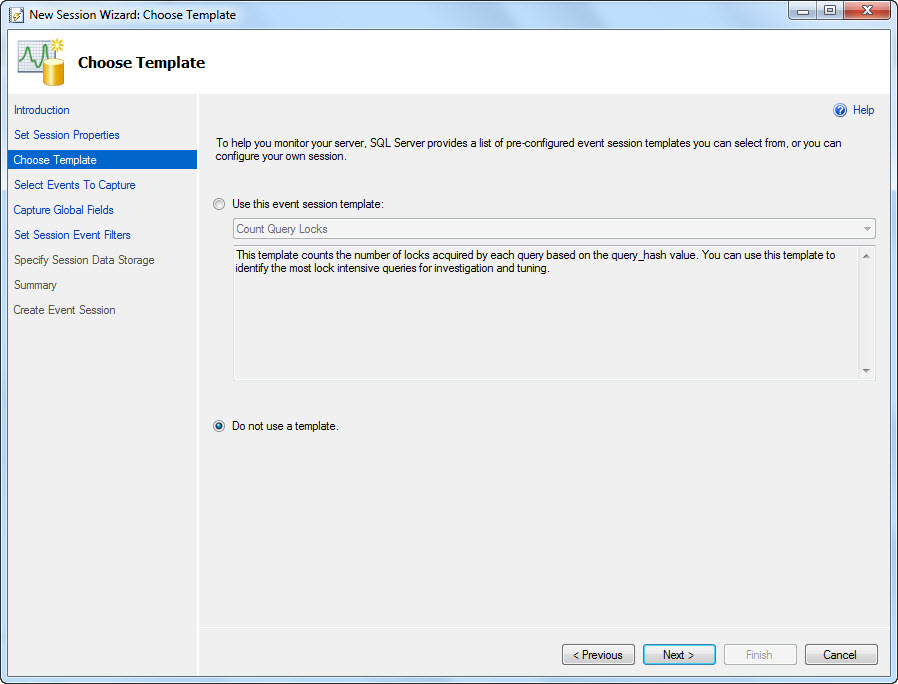
Choose to not use a template:

Select the Events:

Select the Actions:

But when I get to the Filter page, which I am guessing is the equivalent of the "WHERE" caluse, I don't see any of my fields (duration, cpu_time, reads or writes):

So I'm unsure how to properly set this up. Any help appreciated

Tuesday, November 27, 2012

PowerShell: Find SQL Instances installed on...

I've been spending a lot of time lately learning and writing PowerShell scripts. I didn't realize how powerful these were until a recent SQL Saturday, where I sat in on a class and was amazed by all the stuff these scripts could do. Most of what I've written is based off of databases we have locally here at my work, but I've come up with a generic script that tells you all the instances of SQL Server running on a specific Windows server. You enter the server name in the $server variable on line 2 and the script executes, makes a WMI connection and returns the services installed that are for SQL Server.
cls
$server = "localhost"    #Do not put an instance here...this is just the root server

$obje = Get-WmiObject -ComputerName $server win32_service | where {($_.name -like "MSSQL$*" -or $_.name -like "MSSQLSERVER" -or $_.name -like "SQL Server (*") -and $_.name -notlike "*helper*" -and $_.name -notlike "*Launcher*"}
cls
Write-Host " "
Write-Host "Server: " $server
Write-Host " "
if ($obje -is [System.Array])
{
 for ($i=0; $i -lt $obje.Length; $i++)
 {
  $j = $i+1
  Write-Host "Instance $j ..."
  Write-Host "Service Name:  "  $obje[$i].Name
  Write-Host "Service Desc:  "  $obje[$i].DisplayName
  Write-Host "Start Mode:    "  $obje[$i].StartMode
  Write-Host "Service State: "  $obje[$i].State
  Write-Host "Service Status:" $obje[$i].Status
  Write-Host " "
 }
}else
{
 Write-Host "Service Name:  "  $obje.Name
 Write-Host "Service Desc:  "  $obje.DisplayName
 Write-Host "Start Mode:    "  $obje.StartMode
 Write-Host "Service State: "  $obje.State
 Write-Host "Service Status:" $obje.Status
}